
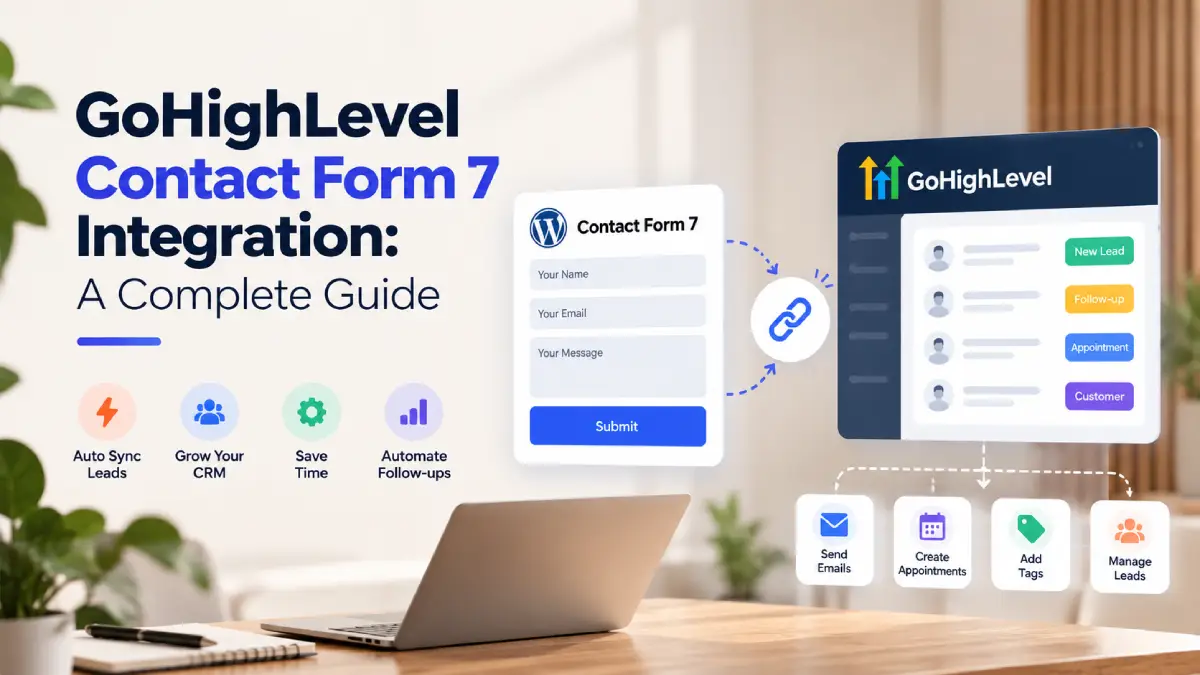

You may have added contact form 7 to interact with your users through forms on your website. But does it send that form to GoHighlevel?
Without Contact Form 7 GoHighLevel Integration, your business may need to send the form submissions manually to GHL. It is hectic and consumes time and manual labor.
When you connect Contact Form 7 to GoHighLevel, it allows those submitted forms to flow into the CRM, from where you can manage, tag, and use them to trigger follow-up workflows.
In this article, I will explain everything about Contact Form 7, what it actually is, and how to connect it so that
What Is GoHighLevel Contact Form 7 Integration?
GoHighLevel Contact 7 integration is streamlining the connection between the submitted form in Contact Form 7 and GoHighLevel, the CRM and marketing automation platform.
This integration can eliminate manual lead transfer and connect website form submissions to CRM processes. The process looks like this:
Visitor → Contact Form 7 → Integration → GoHighLevel → Follow-up
Why Connect Contact Form 7 to GoHighLevel?
In the modern automation ecosystem, if your WordPress plugin is not sending your submitted form to the CRM system automatically, you risk losing a potential conversion of your visitor to your customer.
- New submissions can be transferred into GoHighLevel rather than manually copied.
- Names, email addresses, phone numbers, and other form information can be mapped to CRM fields.
- Once the contact reaches GoHighLevel, configured workflows can handle follow-up actions.
- Businesses using Contact Form 7 don’t necessarily need to rebuild their forms just to connect them with their CRM.
How to Connect Contact Form 7 to GoHighLevel?
You can connect your Contact5 Form 7 to GHL using dedicated WordPress plugins like the GoHighLevel Extension for Contact Form 7 or via automation tools like webhooks.
Here is a simple step-by-step guide to know how to connect GHL with Contact Form 7.
Prepare Your Contact Form 7 Form
First of all, make sure that your existing Contact Form 7 form is working correctly. Check the sections: like name, email, message, company, submit button, etc.
These fields may seem ordinary, but these fields that you will collect will eventually need to be used to map corresponding to the GHL CRM fields.
Install a Contact Form 7 GoHighLevel Extension
A dedicated extension is exceptionally valuable for the users to integrate Contact Form 7 with GoHighLevel. It can make the integration easier by handling the process of sending CF7 submission data to GoHighLevel.
The GoHighLevel extension for Contact Form 7 is designed to transfer simple and efficient form data to GHL. It enables you to manage leads and follow up with potential customers more effectively.
Connect Your GoHighLevel Account
Once you have installed the extension in your WordPress, you will need to connect it with your GoHighLevel account. Depending on the extension, the connection process may use an authorization method, API credentials, or another supported integration method.
Map Your Form Field
Locate the new GHL tab added by your plugin inside the form editor. Map your CF7 form fields (such as your-name, your-email, and your-phone) to the matching fields in GoHighLevel.
Field mapping tells GoHighLevel where each piece of submitted information should be stored.
Test The Integration
Once the set up is complete, the process does not end there. You need to test if all of the form information is correctly streaming into your GHL CRM. Check if:
- The contact was received.
- The information is correct.
- Fields were mapped properly.
- Tags or custom fields were applied.
- Expected workflows were triggered
Common GoHighLevel Contact Form 7 Integration Issues
Even after setting up the integration, you may encounter issues when sending Contact Form 7 submissions to GoHighLevel. Most problems can be traced back to a few common configuration errors.
Form Submissions Aren’t Reaching GoHighLevel
First, check whether the integration is properly connected and authorized. Review the extension’s configuration and confirm that the correct GoHighLevel account or location is selected.
Information Appears in the Wrong Field
If submitted data is showing up incorrectly, review your field mapping. Make sure each Contact Form 7 field is connected to the correct GoHighLevel field or custom field.
Duplicate Contacts Appear
Check how your integration identifies existing contacts. Review its contact-matching settings to determine whether submissions are creating new contacts instead of updating existing records.
Workflow Isn’t Triggering
First, confirm that the contact successfully reached GoHighLevel. Then review your workflow’s trigger and conditions to make sure the submitted information meets the requirements for activation.
Best Practices for GoHighLevel Contact Form 7 Integration
There are many ways you can make your Contact Form 7 integration to GHL better by following some simple steps.
- Only collect the necessary form fields.
- Map every important field carefully.
- Use GoHighLevel custom fields where appropriate.
- Test forms after making integration changes.
- Check workflow triggers separately.
- Retest the connection after a major WordPress or plugins update.
FAQs
Can Contact Form 7 connect to GoHighLevel?
Yes. Contact Form 7 can be connected to GoHighLevel using a suitable integration method or extension.
How do I send Contact Form 7 submissions to GoHighLevel?
Install and configure a compatible CF7-to-GoHighLevel integration, connect your GoHighLevel account, map your fields, and test a submission.
Can Contact Form 7 create contacts in GoHighLevel?
A properly configured integration can send submitted contact information to GoHighLevel for contact creation or updating, depending on its functionality.
Can Contact Form 7 trigger GoHighLevel workflows?
Yes, provided the integration passes the required contact information and your GoHighLevel workflow is configured with the appropriate trigger.
Do I need to replace Contact Form 7?
No. You can keep your existing Contact Form 7 forms and connect them to GoHighLevel using an appropriate integration.
Does the Contact Form 7 extension support GoHighLevel sub-accounts?
Explain the available sub-account connection functionality and any version-specific limitations.
What fields can I send from Contact Form 7 to GoHighLevel?
Mention the confirmed basic fields—name, email, and phone—and explain that additional fields depend on the mapping and plugin functionality.
Can I add tags to Contact Form 7 submissions?
Explain global and form-specific tags.
Can I map custom fields in GoHighLevel?
Discuss contact and, where supported, opportunity custom fields.
Why is my Contact Form 7 lead not appearing in GoHighLevel?
Provide a concise troubleshooting checklist and link to the detailed troubleshooting section.
Ready to connect your WordPress forms to GoHighLevel?
If your WordPress website uses Contact Form 7, you can connect your existing forms with GoHighLevel without rebuilding them. The GoHighLevel Extension for Contact Form 7 helps transfer supported form data to your CRM and provides configuration options for field mapping, tags, and GoHighLevel account connections.
Explore the Contact Form 7 extension and connect your WordPress forms with GoHighLevel.


