
WordPress is a great place to create and manage your website and its activities. But when your WordPress website generates leads, do you need to enter the data manually to move with the workflow?
If so, then you are falling behind many businesses that automate the entire system, from managing contact management systems to follow-ups, etc., with GoHighLevel.
When a visitor signs up or fills out a contact form on your website, you need to add the contact details manually in GoHighLevel so that it can move to further procedure. This slows down the workflow, and delays in procedure can negatively affect the visitor experience.
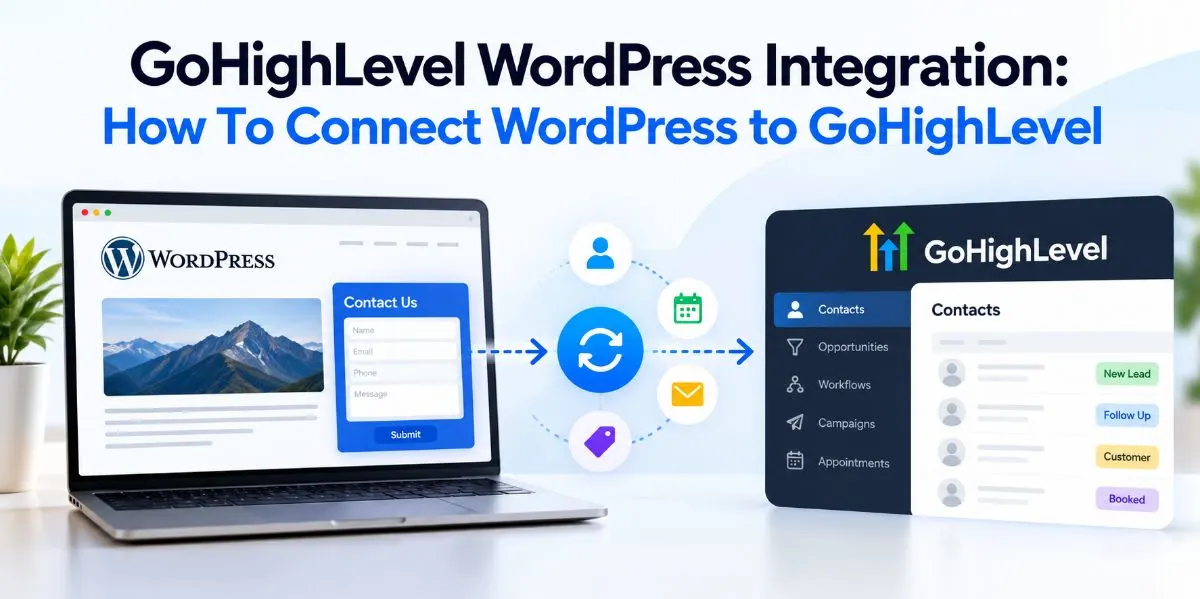
GoHighLevel WordPress Integration helps to automate the tasks with follow-ups so that leads can stay connected to the sales process by connecting WordPress and GoHighLevel.
In this article, I will explain how to integrate GoHighLevel for WordPress, set up, etc.
Table of Contents
| 1 | Introduction |
| 2 | What Is GoHighLevel WordPress Integration? |
| 3 | Why You Should Integrate GoHighLevel With WordPress |
| 4 | What Can You Connect Between WordPress and GoHighLevel? |
| 5 | Ways to Integrate GoHighLevel with WordPress Website |
| 6 | How to Set Up GoHighLevel WordPress Integration |
| 7 | How to Test Your WordPress GoHighLevel Integration |
| 8 | GoHighLevel WordPress Integration Best Practices |
| 9 | FAQ |
| 10 | Conclusion |
What Is GoHighLevel WordPress Integration?
WordPress is a CMS where visitors can interact with the website owner, while GoHighLevel is a marketing or sales automation platform that manages everything after the user or visitor interacts with the website.
In this way, GoHighLevel WordPress integration means connecting a WordPress website with GoHighLevel so that information and actions can flow between the website and the CRM marketing systems.
In an example framework, it looks like this:
Visitor → WordPress website → lead submits a form → GoHighLevel receives leads → contact is created → workflow starts → lead receives email or SMS → sales team follows up
Why You Should Integrate GoHighLevel With WordPress
There are many benefits that your business can visibly experience by integrating GoHighLevel with WordPress.
Without proper GHL integration, your business might need to manually move leads from one system to another. It is inefficient and time-consuming. But a proper integration creates a value proposition, as the proper workflow begins with automated systems.
You get:
- Website leads can flow into the CRM instead of being managed separately.
- No need to repeatedly copy contact information between systems.
- New leads can enter appropriate workflows after submission.
- The website becomes part of a larger lead-generation and nurturing process.
What Can You Connect Between WordPress and GoHighLevel?
To integrate GoHighLevel with WordPress, it’s important to know exactly what you can connect between the two, as different areas serve different purposes.
| WordPress activity | Possible GoHighLevel outcome |
| Contact form submission | Create/update contact |
| Lead information | Store in CRM |
| Appointment booking | Capture appointment data |
| Conversion/action | Trigger workflow |
| Contact details | Update CRM fields |
| Lead submission | Send notification |
Ways to Integrate GoHighLevel with WordPress Website
There are many ways the GoHighLevel plugins can help your WordPress website manage multiple functions and systems to smoothen your workflow.
However, there isn’t one universal way to connect GoHighLevel with WordPress. The right approach depends on how your WordPress website captures leads, processes orders, or collects customer information.
Custom API/webhook integrations are another option when a website has requirements that aren’t covered by an existing plugin.
Here are some ways that you can use the plugin for your website.
Integrate GoHighLevel with Contact Form 7
There are many ways the GoHighLevel plugins can help your WordPress website manage multiple functions and systems to smoothen your workflow.
However, there isn’t one universal way to connect GoHighLevel with WordPress. The right approach depends on how your WordPress website captures leads, processes orders, or collects customer information.
Custom API/webhook integrations are another option when a website has requirements that aren’t covered by an existing plugin.
Here are some ways that you can use the plugin for your website.
If your business is using Contact Form 7 for their WordPress website, a GHL extension can connect form submission with the GoHighLevel CRM via API.
The GoHighLevel extension for Contact Form 7 allows your users to connect a GHL location and map Contact Form 7 fields such as name, email, and phone to corresponding GoHighLevel WordPress integration.
You can also configure global or form-specific tags with this GHL extension, as this is designed for lead generation and sales management.
Contact Form 7 → GHL Extension → GoHighLevel CRM
Integrate GoHighLevel for WordPress with Gravity Forms
If your business is using Gravity Forms for your website to manage leads and sales, a dedicated GHL extension for Gravity Forms can transfer form data into the CRM. It is particularly helpful if you need more control over your form data and CRM mapping.
This GoHighLevel WordPress integration supports field mapping and can connect forms to specific GoHighLevel locations. Additionally, it can also support additional contact and opportunity custom-field mapping, including assigning submissions to a pipeline and stage.
Connect GoHighLevel with WooCommerce
This is an important integration route because WooCommerce isn’t just collecting leads. It is generating customer and purchase data.
A GHL Connect plugin for WooCommerce can sync users with GoHighLevel, connect WooCommerce with GHL subaccounts, use order-status triggers, and apply tags and workflows to products.
It can streamline data transfer and ensures a smooth connection between your e-commerce and customer relationship management.
Connect WordPress to a GoHighLevel Jotform Plugin
A GHL extension for Jotform can effortlessly connect your Jotform data with GHL CRM via API. It can also enhance your ability to engage with prospects more effectively and accelerate deal closure.
How to Set Up GoHighLevel WordPress Integration
You can connect WordPress and GoHighLevel by following the official guide on the HighLevel support portal to host or link your site.
Here is a simple step-by-step guide you can follow for your GoHighLevel WordPress setup.
Setting Up WordPress Hosting Inside GoHighLevel
- Navigate to your sub-account in GoHighLevel and select Sites > WordPress.
- Click Create Site or Complete Setup, then choose to build a blank site, use a template, or clone an existing one.
- Enter your website name, administrator username, password, and email address.
- Select desired plugins from the interactive menu, such as security, performance, or SEO plugins, then finish the setup.
Installing the LeadConnector Plugin in WordPress
- Log into your WordPress dashboard, go to Plugins, and click Add New.
- Search for LeadConnector, install the official plugin, and click Activate.
- Install and activate the official LeadConnector plugin. Open its settings in WordPress and follow the available account connection process, which may include signing in to GoHighLevel and selecting the appropriate location or sub-account.
Embedding GoHighLevel Forms and Funnels
- Create or open a form under Sites > Forms in GoHighLevel and copy the inline HTML embed code.
- Open your page editor in WordPress, such as Elementor or Divi, add a Custom HTML or Code block, and paste the code where you want the form to appear.
- Publish or update the page to make your GoHighLevel form or chat widget live on your WordPress site.
How to Test Your WordPress GoHighLevel Integration
Integrating WordPress for your GHL is one part. If you do not test your GHL integration, your website might be falling short. There may be underlying problems that can appear while you work. So it is recommended to test early after integration.
- Submit a test form: Use realistic test information.
- Check GoHighLevel: Confirm the contact was created or updated.
- Check field mapping: Make sure information appears in the correct fields.
- Check the workflow: Confirm the intended automation was triggered.
- Check notifications: Make sure the appropriate team member receives alerts.
- Test duplicate/existing contacts: See how the integration handles repeat submissions.
GoHighLevel WordPress Integration Best Practices
- Define the data flow before implementation.
- Keep field names and mappings consistent.
- Test the integration before launch.
- Monitor failed submissions.
- Avoid unnecessary integrations.
- Keep plugins and integration components updated.
- Document your configuration.
- Have a backup process for failed lead submissions.
FAQs
Can I integrate GoHighLevel with an existing WordPress website?
Yes. You do not necessarily need to rebuild your WordPress website. Depending on your requirements, you can use forms, plugins, embeds, APIs, or other integration methods to connect your existing website with GoHighLevel.
Will integrating WordPress with GoHighLevel affect my existing website forms?
It can, depending on the integration method. Before replacing or modifying an existing form, check how submissions are currently processed and test the new connection to ensure leads continue to reach the intended destination.
Can I connect multiple WordPress forms to one GoHighLevel account?
Yes, multiple forms can be connected to GoHighLevel. You can configure the appropriate field mapping, tags, workflows, or other settings based on how you want leads from different forms to be handled.
What happens if the WordPress-to-GoHighLevel connection stops working?
First, check the integration settings, field mapping, plugin status, API or webhook connection, and GoHighLevel workflow configuration. Submitting a test lead can help identify where the data flow is breaking.
Is a custom GoHighLevel WordPress integration better than a plugin?
Not always. A plugin or extension can be sufficient for common requirements, while a custom API or webhook integration may be more appropriate when you need specialized data flows, custom functionality, or greater control over the integration.
Can I connect Contact Form 7 to GoHighLevel?
Explain that this generally requires a compatible extension, connector, webhook, or custom API integration, depending on the setup.
Does the LeadConnector plugin automatically connect every WordPress form?
Clarify that installing the official plugin does not necessarily mean every third-party WordPress form automatically transfers submissions to GoHighLevel.
Can I connect WooCommerce orders to GoHighLevel?
Explain which customer and order information the specific WooCommerce integration supports.
Do I need an API for WordPress–GoHighLevel integration?
Explain that the requirement depends on the integration method. Some methods use a plugin or account connection, while others may require APIs or webhooks.
Conclusion
Connecting WordPress with GoHighLevel can turn your website from a lead collection point into an active part of your sales and marketing workflow. Instead of manually transferring contact details, you can connect forms, customer data, appointments, and other website activities with GoHighLevel to create a more efficient process.
The right integration method depends on your WordPress setup and business requirements. Whether you use Contact Form 7, Gravity Forms, WooCommerce, or Jotform, or need a custom API or webhook solution, planning the data flow and testing the connection are essential for a reliable setup.
If you want to simplify your WordPress and GoHighLevel workflow, explore GHL integrations designed to connect your website with your CRM and automation processes.