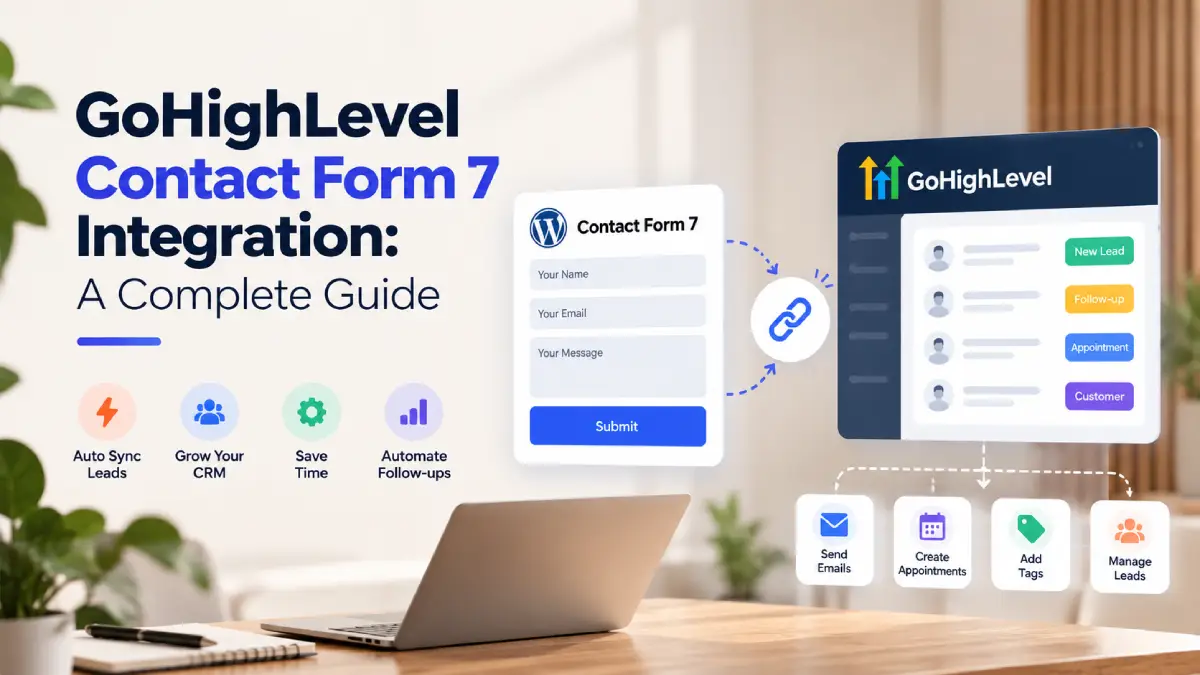

Why Connect GoHighLevel to WordPress?
Let’s quickly explore the benefits of connecting GHL to your WordPress website.- Automatically send website leads to GoHighLevel.
- Keep contact information organized.
- Trigger workflows based on submissions.
- Reduce manual data entry.
- Follow up with leads faster.
What Do You Need to Connect GoHighLevel to WordPress?
To integrate GHL with WordPress, make sure you have the following:- A website built with WordPress.
- GoHighLevel WordPress Plugin.
- An active GoHighLevel account.
- Access to your WordPress dashboard.
- A method for transferring website data, such as a plugin, form integration, webhook, or API connection.
How to Connect GoHighLevel to a WordPress Website
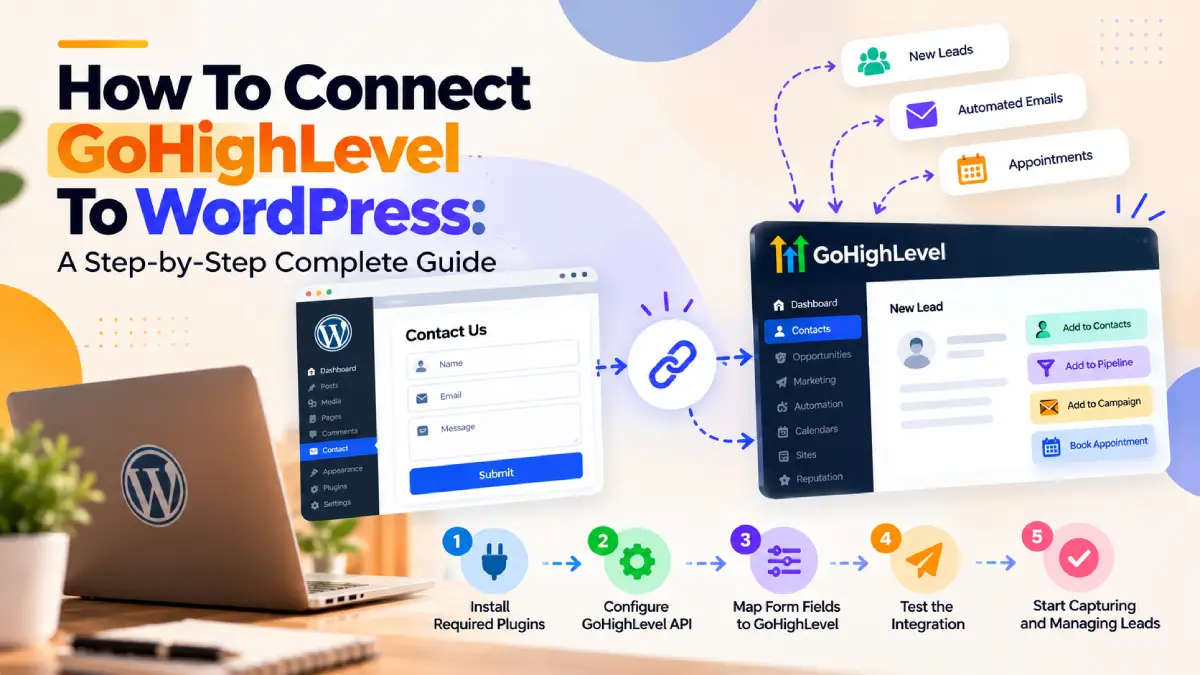
Once you have everything needed for your GoHighLevel WordPress integration, it’s time to connect GHL to your website. Follow these steps to set up the integration.Choose What You Want to Connect
The first step may be installing a plugin, but you should decide what you want to connect before choosing one.Determine what data you want to transfer from WordPress to GHL. This might include contact form submissions, appointment requests, lead information, or other contact details.Once you know your automation goals, it will be easier to choose the WordPress GoHighLevel plugin that best suits your needs.Step 1: Install the GHL WordPress Plugin
Start by installing the GHL plugin on your WordPress website.- Log in to your WordPress dashboard.
- Go to Plugins and click Add New.
- Install and activate the plugin.
Step 2: Connect Your WordPress Website
- In your GoHighLevel dashboard, go to Settings and select Business Profile.
- Find and copy your API key, generating one if necessary.
- Return to WordPress and click LeadConnector in the left sidebar.
- Enter your GHL API key or sign in using your GHL credentials, then save the connection.
Step 3: Embed Forms, Chat Widgets, or Funnels
- Chat Widget: Enable and configure the chat bubble under Sites > Chat Widget in your GHL sub-account.
- Funnels: Navigate to the LeadConnector tab in WordPress, select Funnels, click Add New, and choose to embed your GHL funnel pages as an iframe.
- Forms: Copy the standard inline embed code from your GHL form builder and paste it into a WordPress page or post using a Custom HTML block.
Step 4: Map Your WordPress Fields to GoHighLevel
If your WordPress form collects a name, email address, phone number, and other information, map each field to the appropriate GoHighLevel field.Accurate field mapping helps prevent missing or incorrectly stored information. If your form includes additional fields, such as company name or service interest, map them to the appropriate GoHighLevel fields or create custom fields when needed.Step 5: Test the Connection
After connecting GHL with WordPress, submit a test form using a separate account and verify the following:- The contact appears in GoHighLevel.
- Fields contain the correct information.
- Tags are applied correctly.
- The intended workflow is triggered.
- No duplicate or missing data appears.
- Confirm that the correct GoHighLevel sub-account receives the lead.
- Check whether the contact was created or updated.
- Verify the lead source or attribution data, if configured.
- Confirm the workflow trigger conditions.
- Check whether consent information is transferred where relevant.
- Test the behavior when a required field is missing.
- Verify whether duplicate submissions create duplicate contacts or update existing records.
FAQs
Can I connect GoHighLevel to WordPress?
Yes. You can connect GoHighLevel to a WordPress website using a suitable plugin, form integration, webhook, API connection, or GoHighLevel embed options, depending on what you want to connect.
Do I need a GoHighLevel WordPress plugin?
A plugin can simplify the integration process, but it is not the only option. The right method depends on whether you want to connect forms, funnels, chat widgets, lead data, or other WordPress functionality with GoHighLevel.
How do I connect a WordPress form to GoHighLevel?
You can connect a WordPress form to GoHighLevel using a compatible integration method. After establishing the connection, map the WordPress form fields to the appropriate GoHighLevel fields and submit a test form to verify that the information is transferred correctly.
Why are my WordPress leads not appearing in GoHighLevel?
Common causes include an incorrect API connection, incorrect field mapping, configuration issues, or a workflow that has not been properly triggered. Check your connection settings, field mapping, and workflow configuration before testing the form again.
Can GoHighLevel automate leads from WordPress?
Yes. Once WordPress is properly connected to GoHighLevel, incoming lead information can be used with GoHighLevel’s CRM and automation features, such as contact organization, tagging, workflows, and follow-up processes.
Final Words
Connecting GoHighLevel to WordPress can simplify the way you capture and manage leads from your website. Instead of manually transferring contact information, you can connect your forms, chat widgets, funnels, and other website activities with GoHighLevel and keep your customer data organized.
The key is to choose the right integration method, configure the connection correctly, map your fields, and test everything before going live. Once your WordPress and GoHighLevel systems are connected, you can spend less time on repetitive data entry and more time managing leads and customer relationships.
Connect WordPress With GoHighLevel More Easily
The right plugin can make your GoHighLevel WordPress setup simpler by helping you connect your website with the CRM without relying entirely on manual data entry. Whether you need to connect forms, capture leads, or streamline your WordPress-to-GoHighLevel workflow, explore integration plugins from iB SOFTS and find the solution that fits your setup.